Moodle Setup Guide
Get EduGears AI running in your Moodle LMS in under 5 minutes. No plugins or custom code required.
Prerequisites
- Moodle 4.0 or later (Moodle 4.5+ recommended)
- Moodle administrator access
- Your EduGears registration URL (provided below)
Open Manage Tools
Log in to Moodle as an administrator. Navigate to Site Administration → Plugins → Activity modules → External tool → Manage tools.
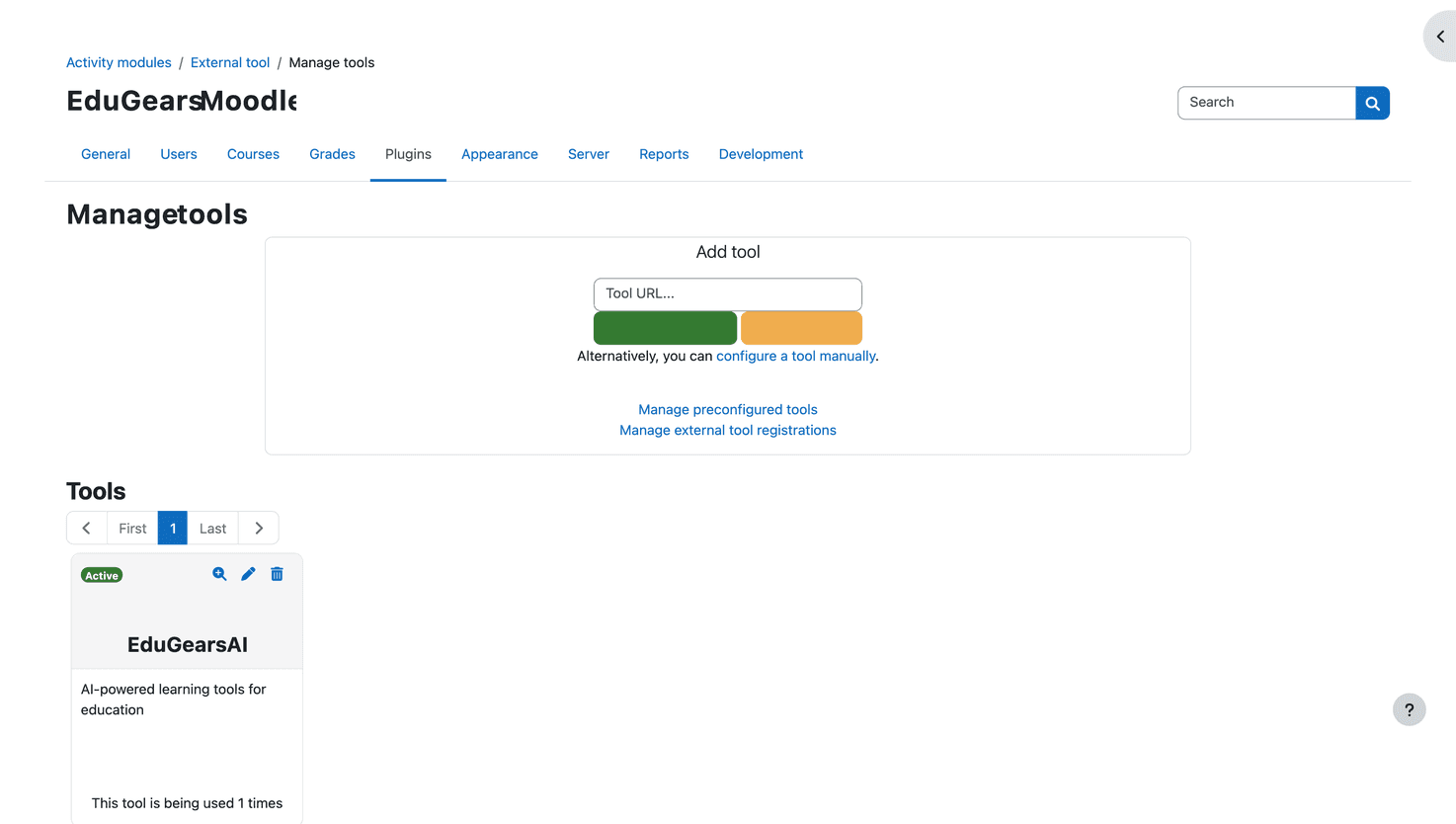
Enter the Registration URL
In the Tool URL field at the top of the page, paste the EduGears registration URL and click the "Add LTI Advantage" button.
Registration URL
https://lti-api.edugears.ai/lti/register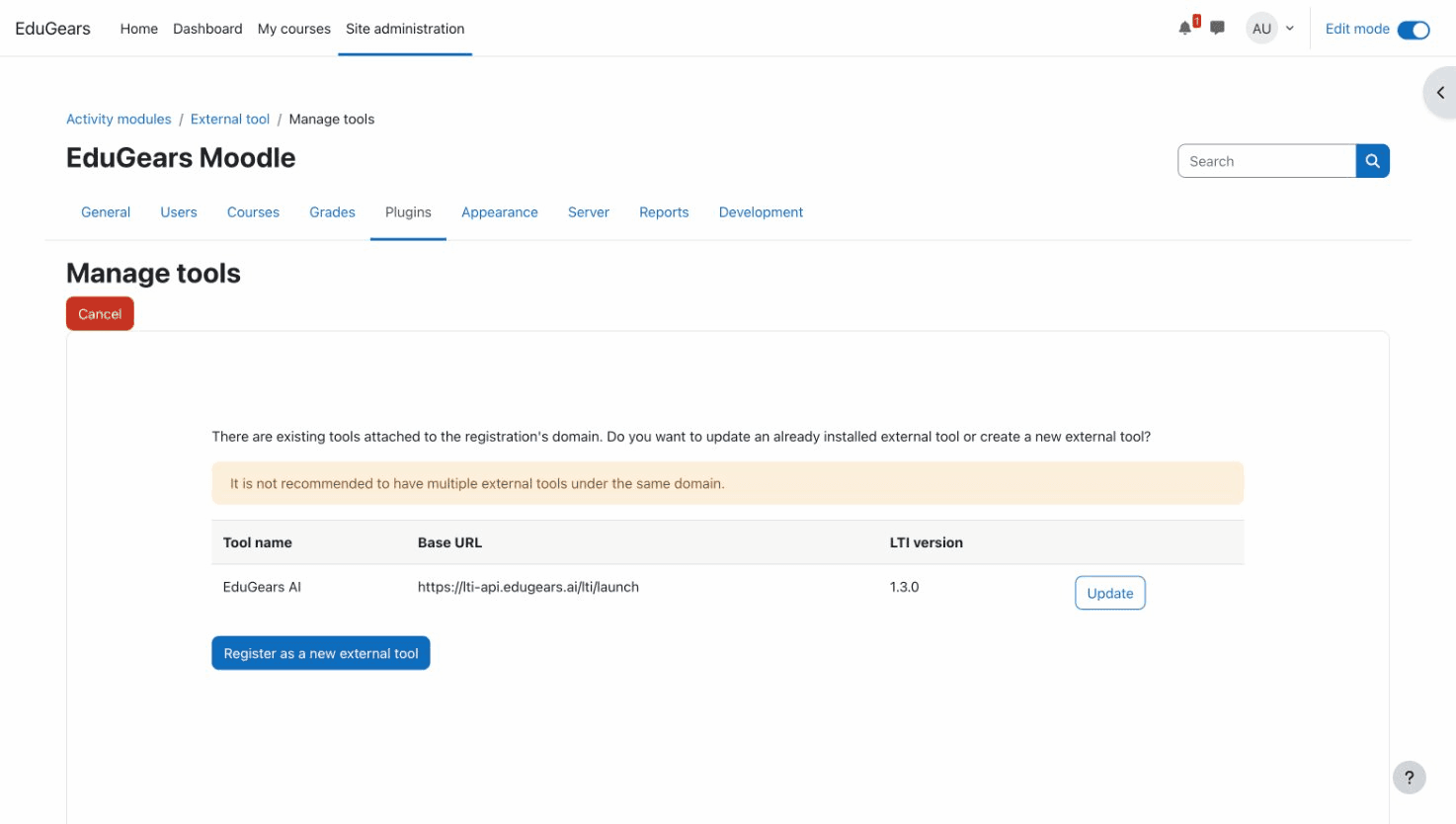
Activate the Tool
After registration completes, EduGears AI will appear in the tools list with a "Pending" status. Click the Activate button to enable it. The tool card should now show a green Active badge.
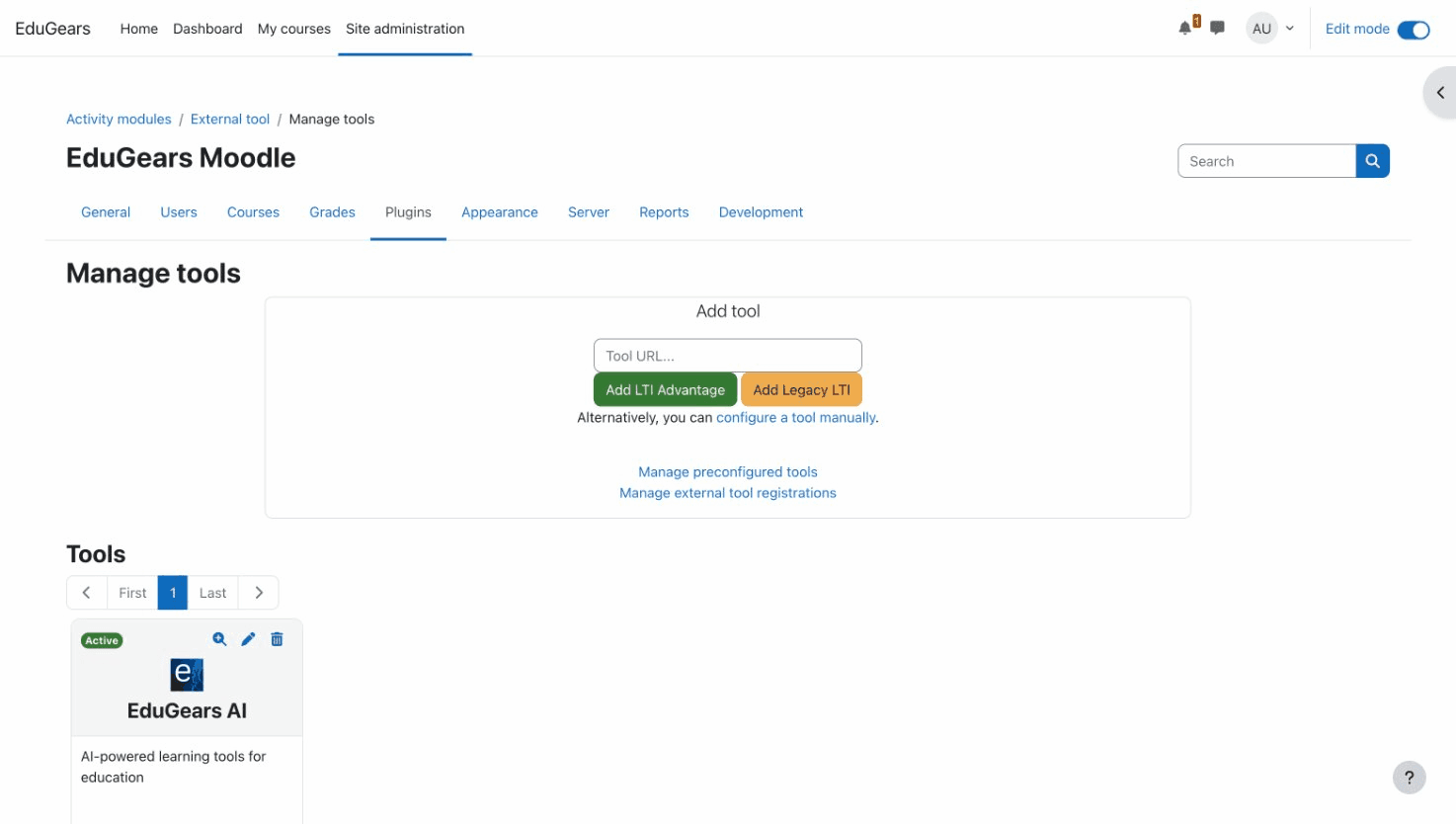
Enable in Activity Chooser
On the Manage tools page, click the edit (pencil) icon on the EduGears AI tool card. Scroll down to "Tool configuration usage" and set it to "Show in activity chooser and as a preconfigured tool". Click Save changes.
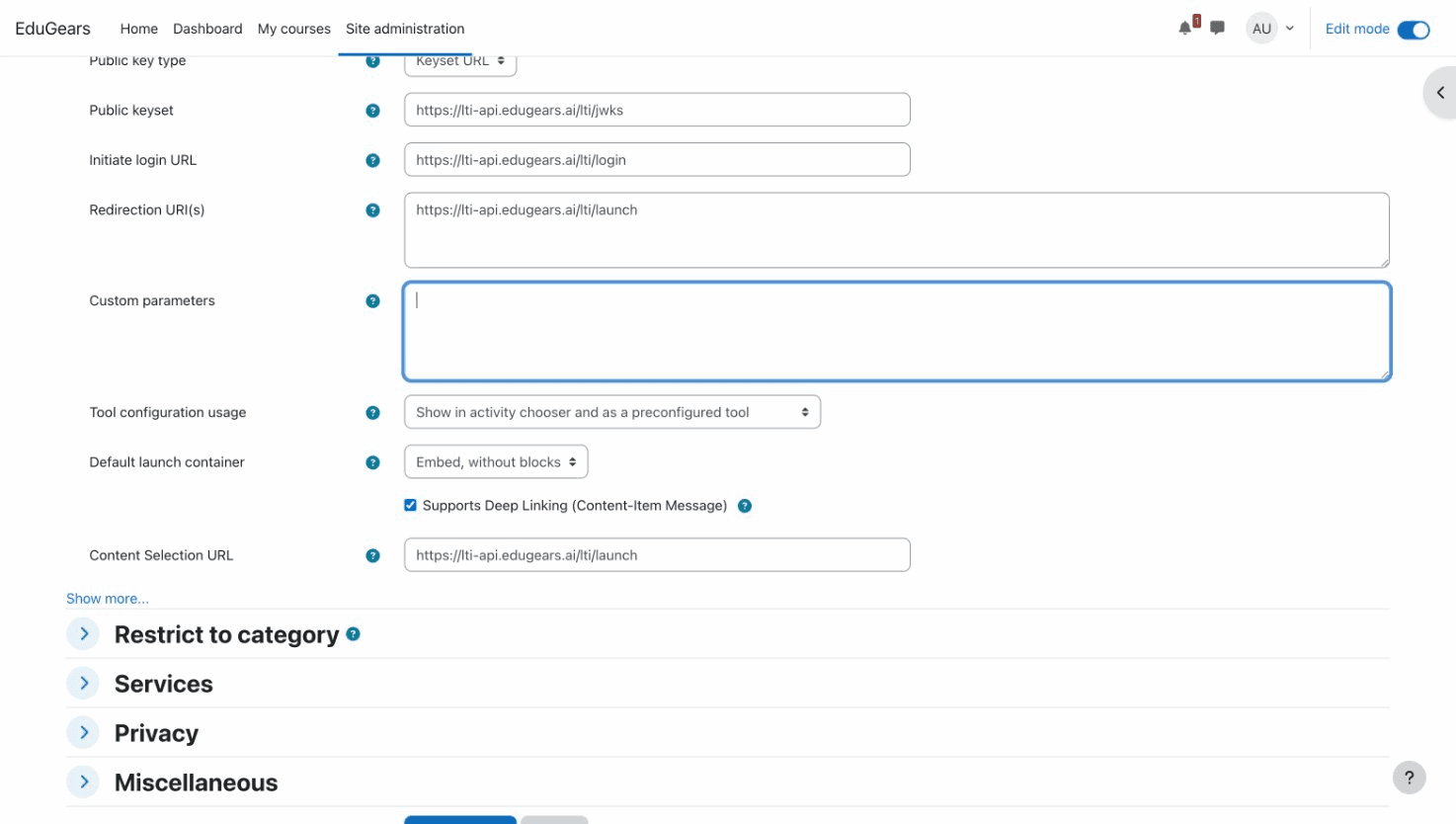
Add to a Course
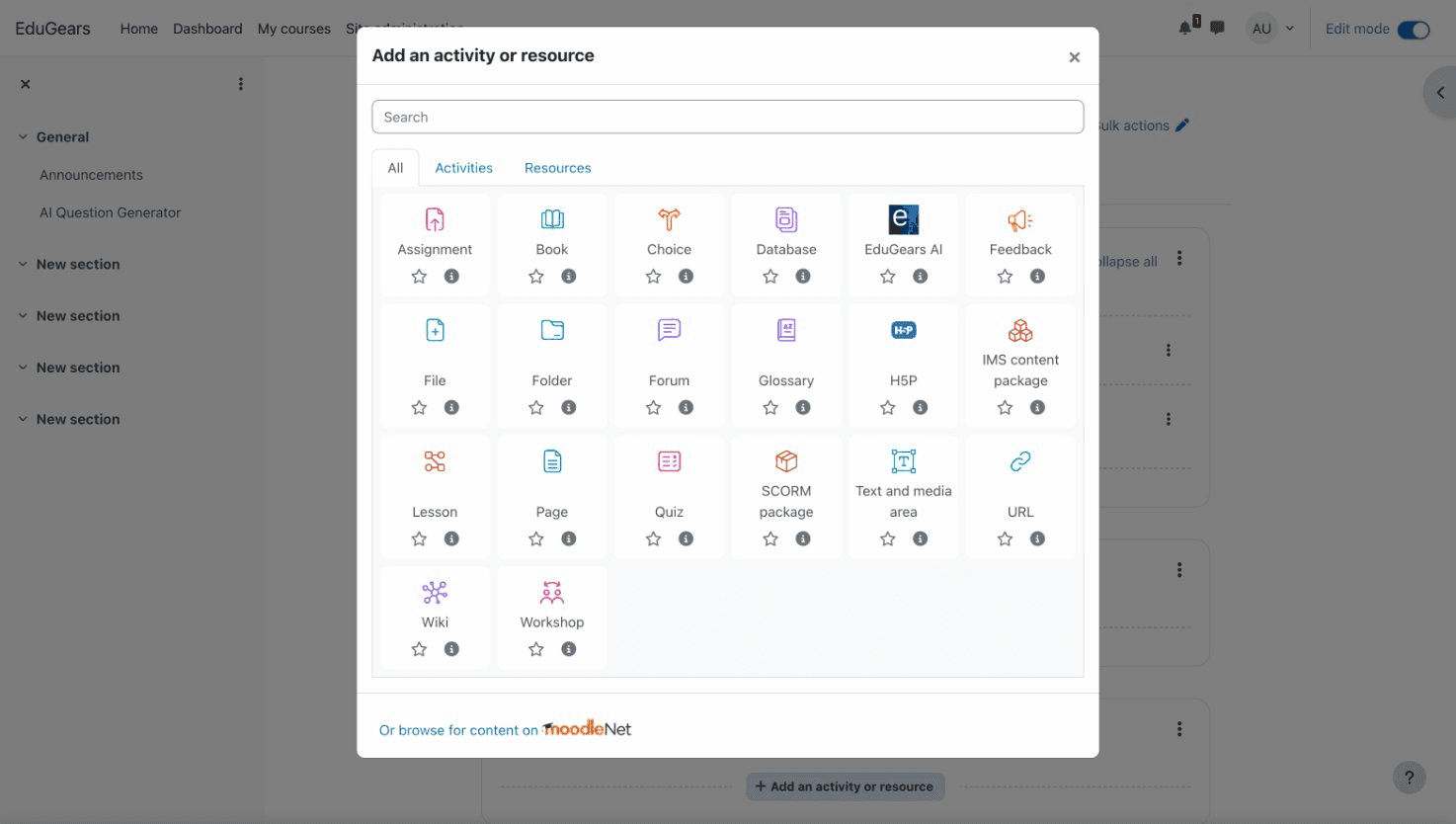
Open any course and turn on Edit mode. Click "+ Add an activity or resource" in any section, then select EduGears AI from the activity chooser.
Choose an AI Tool
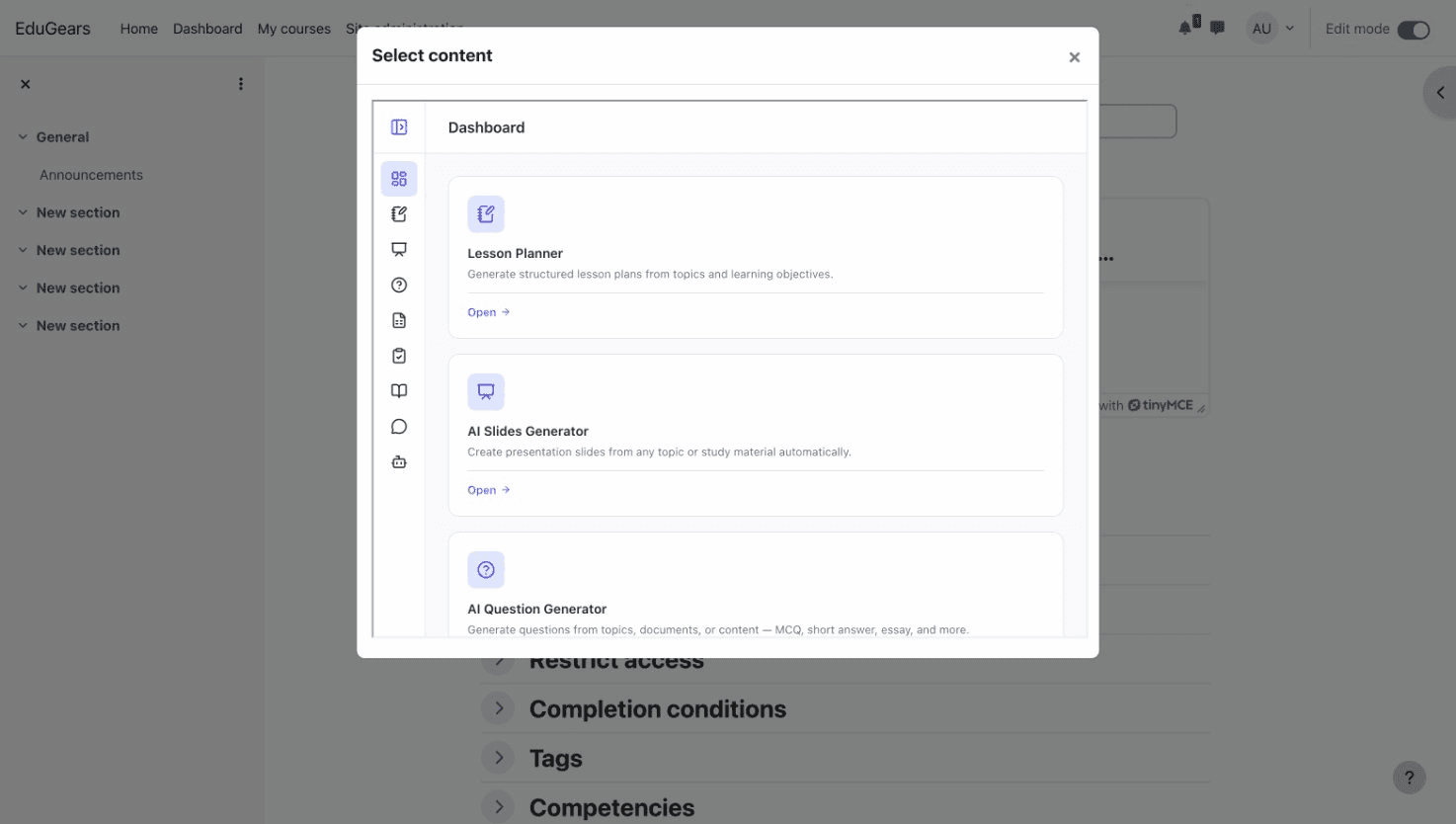
A content picker will open showing all available AI tools — Question Generator, Slides Generator, AI Grading, AI Tutor, and more. Click the tool you want, then click Add to Course.
Save and Launch
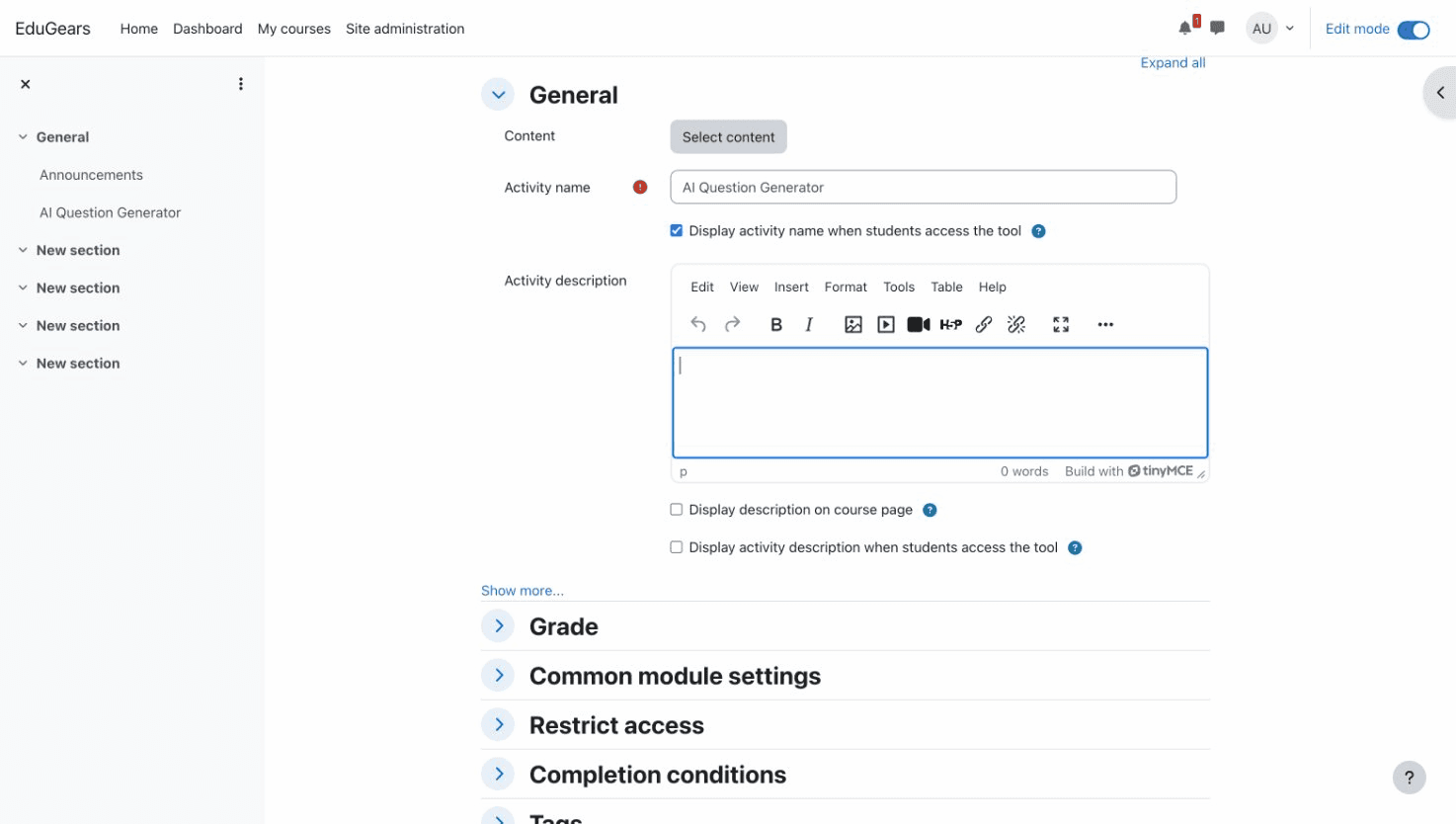
Moodle auto-fills the activity name. Click "Save and return to course" or "Save and display" to launch immediately. Students can now click the activity to use the AI tool — no separate login required.
Available AI Tools
| Tool | Description |
|---|---|
| AI Question Generator | Generate questions from topics for quizzes and assessments |
| AI Slides Generator | Create presentation slides from any topic |
| AI Grading | AI-assisted grading with detailed feedback and grade passback |
| AI Tutor | Interactive AI tutor for student Q&A and guided learning |
| AI Study Guide | Generate study guides and revision material |
| AI Worksheet Generator | Generate practice worksheets and activities |
| AI Lesson Planner | Generate lesson plans from topics and learning objectives |
| AI Assistant | AI teaching assistant for instructors |
Frequently Asked Questions
Do students need an EduGears account?
No. Students are automatically authenticated through Moodle’s LTI integration. They simply click the activity in their course.
Can I add multiple AI tools to the same course?
Yes! Repeat Steps 4–6 to add as many tools as you’d like. Each tool appears as a separate activity.
Which Moodle versions are supported?
EduGears AI works with Moodle 3.9 and later. We recommend Moodle 4.0+ for the best LTI 1.3 experience.
Is the data secure?
Yes. EduGears uses the LTI 1.3 Advantage standard with OAuth 2.0 and signed JWTs. All communication is cryptographically secured. No passwords are shared.
Can I restrict which AI tools are available?
Yes. Contact us at support@edugears.ai to customize which tools appear in the content picker for your institution.
The tool doesn’t appear in the activity chooser?
Make sure you completed Step 4 — edit the tool on the Manage tools page and set "Tool configuration usage" to "Show in activity chooser and as a preconfigured tool".